 Hello!
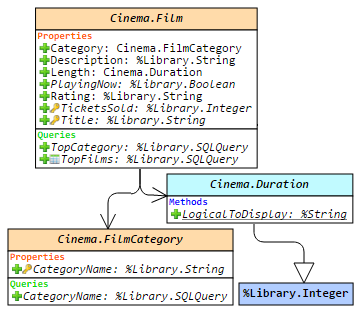
This article is a small overview of a tool that helps to understand classes and their structure inside the InterSystems products: from IRIS to Caché, Ensemble, HealthShare.
In short, it visualizes a class or an entire package, shows the relations between classes and provides all the possible information to developers and team leads without making them go to Studio and examine the code there.
If you are learning InterSystems products, reviewing projects a lot or just interested in something new in InterSystems Technology solutions — you are more than welcome to read the overview of ObjectScript Class Explorer!
Introduction to InterSystems Products
IRIS (previously known as Caché) is a multi-model DBMS. You can access it by using SQL queries or interact with stored objects and procedures via interfaces available for various programming languages. But the first option is always to develop applications in the native, built-in language of the DBMS — ObjectScript (COS).
Caché supports classes on the DBMS level. There are two main class types: Persistent (can be stored in the database) and Registered (are not stored in the database and play the role of programs and handlers). There are also several special class types: Serial (classes that can be integrated into Persistent classes for creating complex data types, such as addresses), DataType (for creating a user-defined data types), Index, View and Stream.
Enter Class Explorer
Caché Class Explorer is a tool that visualizes the structure of Caché classes as a diagram, shows dependencies between classes and all relevant information, including the methods code, queries, xData blocks, comments, documentation and keywords of various class elements.
Functionality
Class Explorer uses an extended version of the UML notation for visualization, since Caché has an additional set of entities that are not supported in the standard UML, but are important for Caché: queries, xData blocks, lots of keywords for methods and properties (such as System, ZenMethod, Hidden, ProcedureBlock and others), parent-child and one-many relations, class types and so forth.
Caché Class Explorer (version 1.14.3) allows you to do the following:
- Display the hierarchy of packages, a class diagram or an entire package;
- Edit the appearance of a diagram after it is displayed;
- Save the current image of a class diagram;
- Save the current appearance of a diagram and restore it in the future;
- Search by any keywords shown on a diagram or a class tree;
- Use tooltips to get full information about classes, their properties, methods, parameters, queries and xData blocks;
- View the code of methods, queries or xData blocks;
- Enable or disable the display of any diagram elements, including graphical icons.
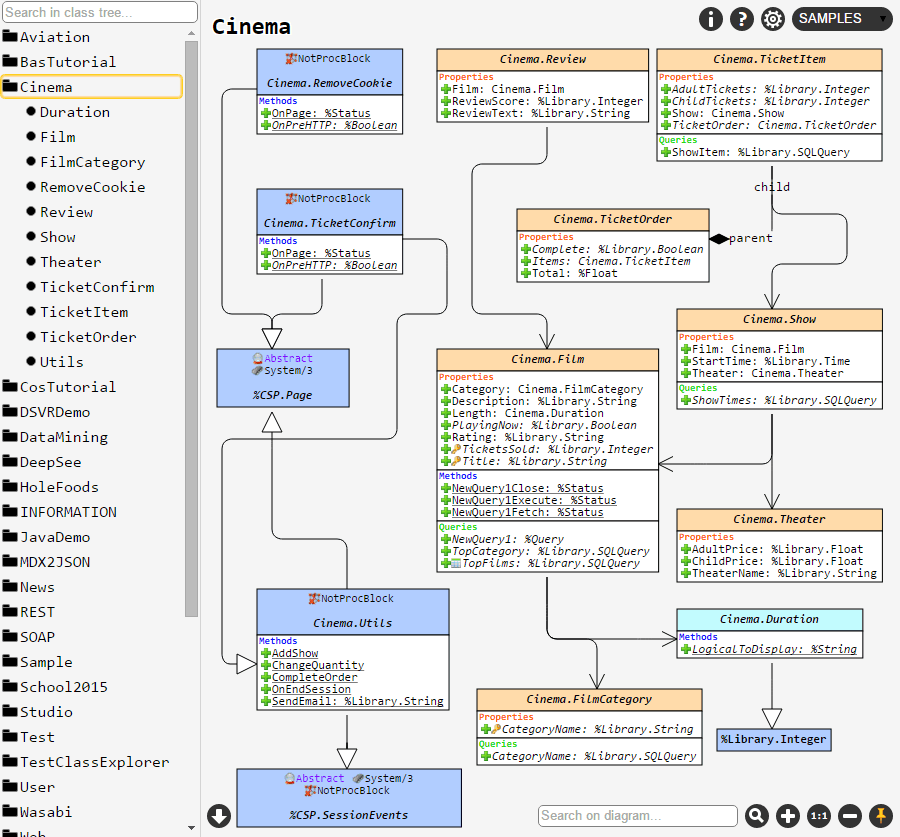
To make a better understanding of everything that follows in this article, take a look at how classes are visualized in Class Explorer. As an example, let’s display the “Cinema” package from the “SAMPLES” namespace:
Details and features' overview
The left sidebar contains a package tree. Place the cursor over the package name and click a button that appears on its right-hand side to display the entire package. Select class in the package tree to render it along with its linked classes.
Class Explorer can display several types of dependencies between classes:
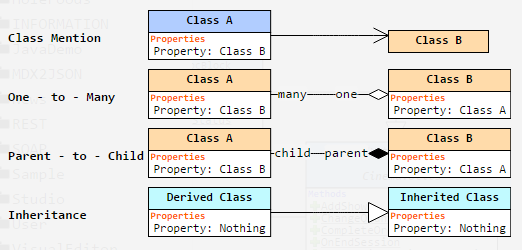
- Inheritance. It is shown with a white color-filled arrow pointing in the direction to the inherited class;
- “Association” or relation between classes. If a field of one of the classes contains a type of another class, the diagram builder will show this as association relation;
- Parent-Child and One-Many relation: the rules of maintaining data integrity.
If you point the cursor over the relation, the properties which create this relation will be highlighted:
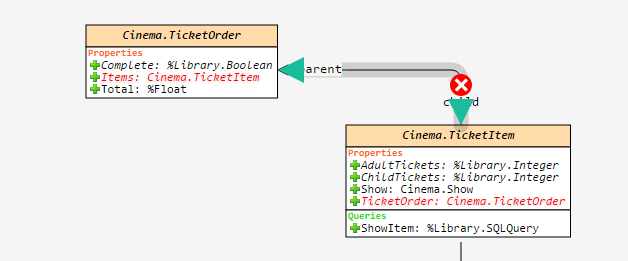
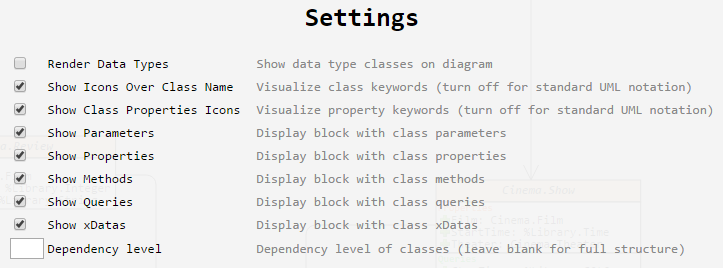
It must be noted that Class Explorer will not go deeper and won’t draw dependencies for classes outside the current package. It will show classes in the current package only, and if you need to limit how deep should Class Explorer look for the classes, use the “Dependency level” setting:
The class itself is displayed as a rectangle which is split into six sections:
- Class name: if you point the cursor at the name of the class, you will be able to learn when it was created and modified, view the comment and all assigned keywords to the class. A double click on the class header will open its documentation;
- Class parameters: all assigned parameters with types, keywords and comments. Parameters in italic, as well as any properties, have tooltips and are hoverable;
- Class properties are similar to parameters;
- Methods: any method can be clicked to view its source code. The COS syntax will be highlighted;
- Queries: are just like methods — click on them to view the source code;
- xData blocks: blocks that mostly contain XML data. Clicking on them will show formatted source code in the block.
By default, each class is displayed with a number of graphic icons. The meaning of each icon can be clarified by clicking on the Help button in the top right corner of the screen. If you need a more or less strict UML notation that is displayed by default, as well as the display of any class sections, it can be disabled in the settings section.
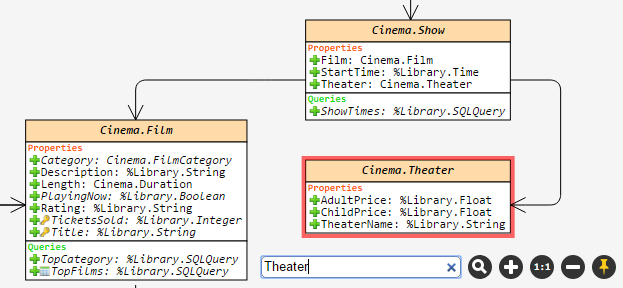
If a diagram is quite large and unfamiliar to you, you can use a quick diagram search function. The class containing any part of the keyword you entered will be highlighted. To jump to the next match, just press Enter or click the search button again:
Finally, after all the edits on the diagram are made, all unnecessary relations are removed and elements are placed on their positions to reach the desired look, you can save it by clicking a Download button in the bottom left corner: 
When you activate a pin button  , the position of elements on the diagram of the current set of classes (or a package) is going to be saved. For example, if you select classes A and B and then save the view with pin button, you will see exactly the same view when choosing classes A and B again, even after restarting the browser or machine. But if you choose only the A class, the layout will be default.
Installation
In order to install Caché Class Explorer, you will only have to import the latest release xml package into any namespace. Once the import is complete, you may notice that the new web app named hostname/ClassExplorer/ (the slash at the end is mandatory) appeared.
Detailed installation instruction
- Download the archive with the latest Caché Class Explorer release;
- Extract the XML-file named Cache/CacheClassExplorer-vX.X.X.xml;
- Import package into any namespace using the one of the following ways:
- Just drag XML-file onto studio;
- Using System Management Portal: System Explorer -> Classes -> Import, and specify the path to the local file;
- Using terminal command: do ##class(%Installer.Installer).InstallFromCommandLine(“Path/Installer.cls.xml”);
- Read the import log — if everything is OK, you will be able to open web application at http://hostname/ClassExplorer/. If something goes wrong, please check the following:
- If you have enough rights to import classes into this namespace;
- If web application user has enough privileges to access different namespaces;
- If you get error 404, just check if you added a slash at the end of the URL.
Some other screenshots
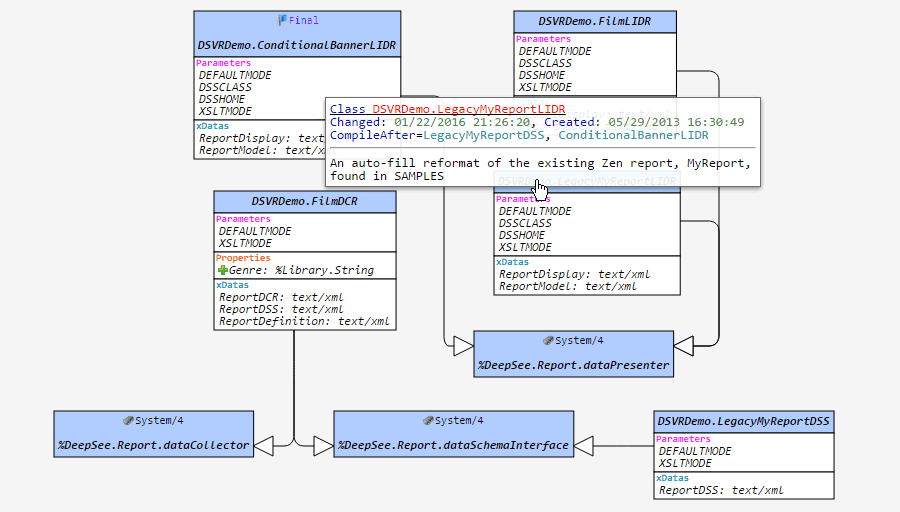
[Screenshot 1] DSVRDemo package, hovering over a class name.
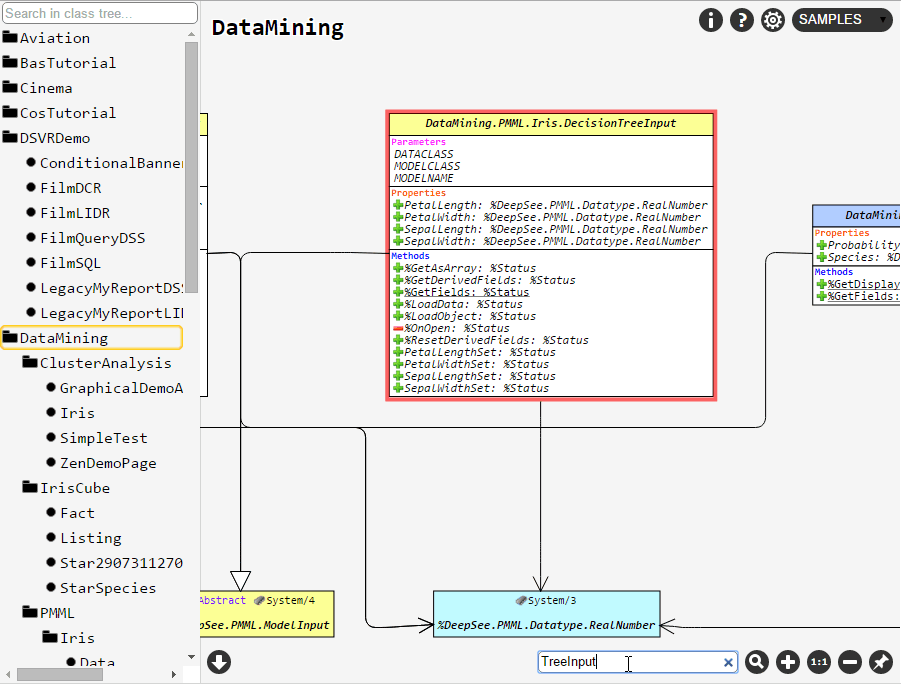
[Screenshot 2] DataMining package, searching for "TreeInput" keyword on the diagram.
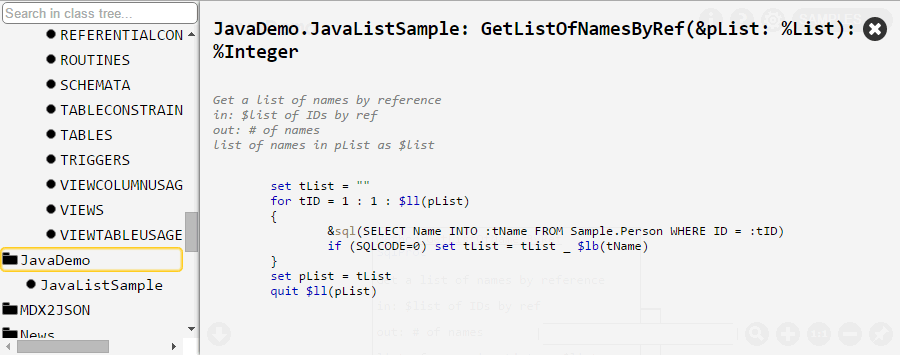
[Screenshot 3] Method code view in JavaDemo.JavaListSample class.
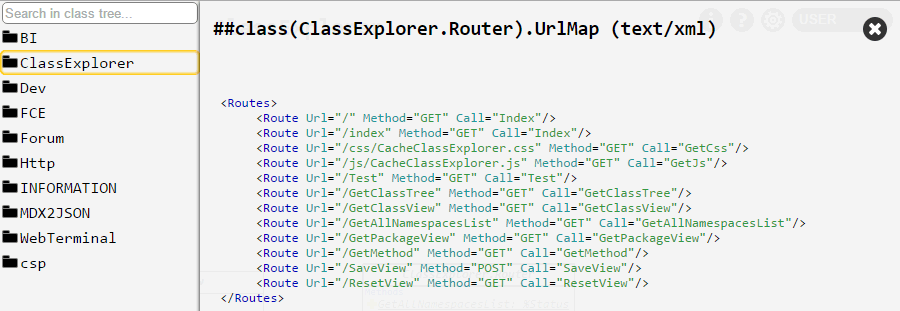
[Screenshot 4] Viewing the XData-block content in ClassExplorer.Router class.
You can try how Class Explorer works in the standard SAMPLES namespace: demo. And here is a video review of the project.
Any feedback, suggestions and comments are welcome — please leave them here or in the GitHub repository. Enjoy!

 Open Exchange